
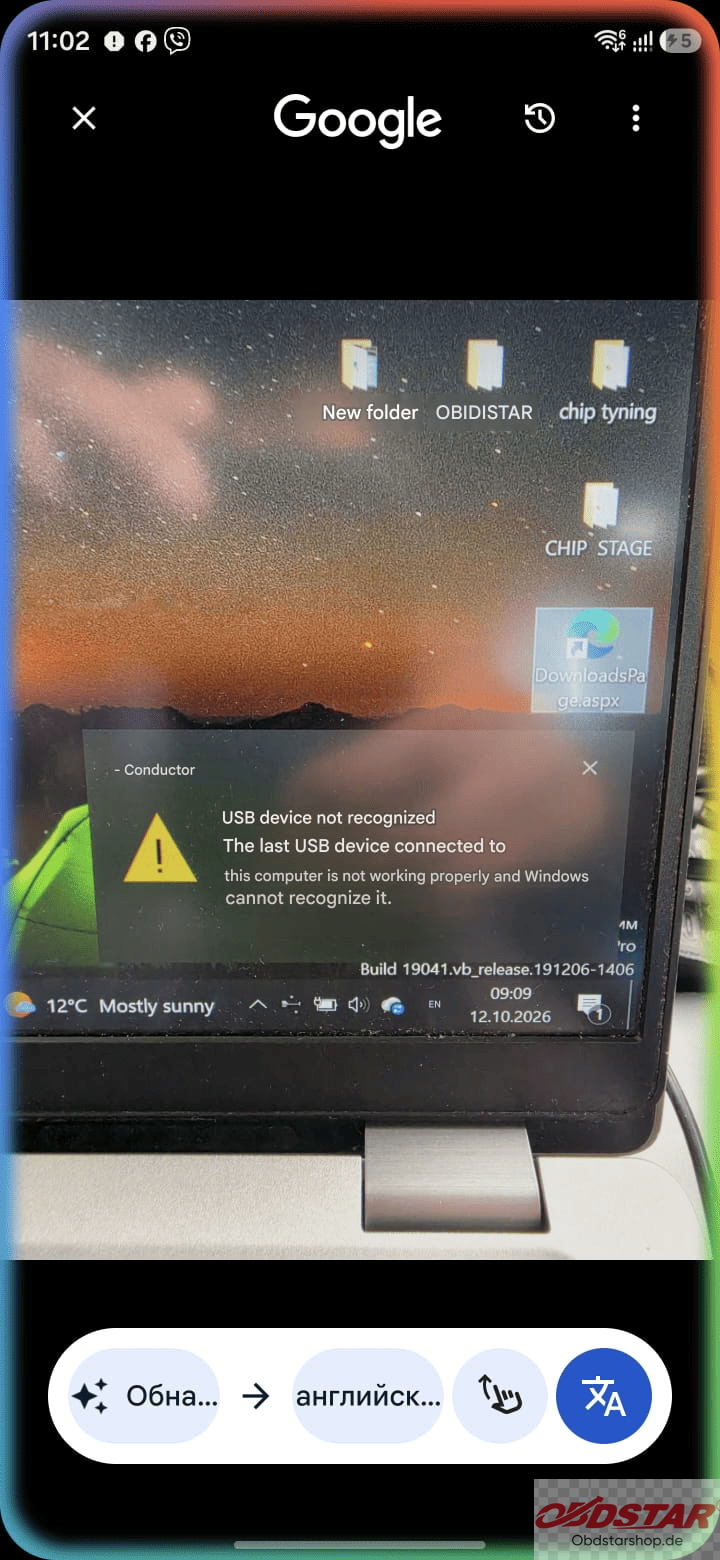
If you connect an OBDSTAR device to a computer and see “USB device not recognized” you may think the device is faulty. However, the first step is to check whether your device actually requires a computer connection and whether you are using the correct registration page.
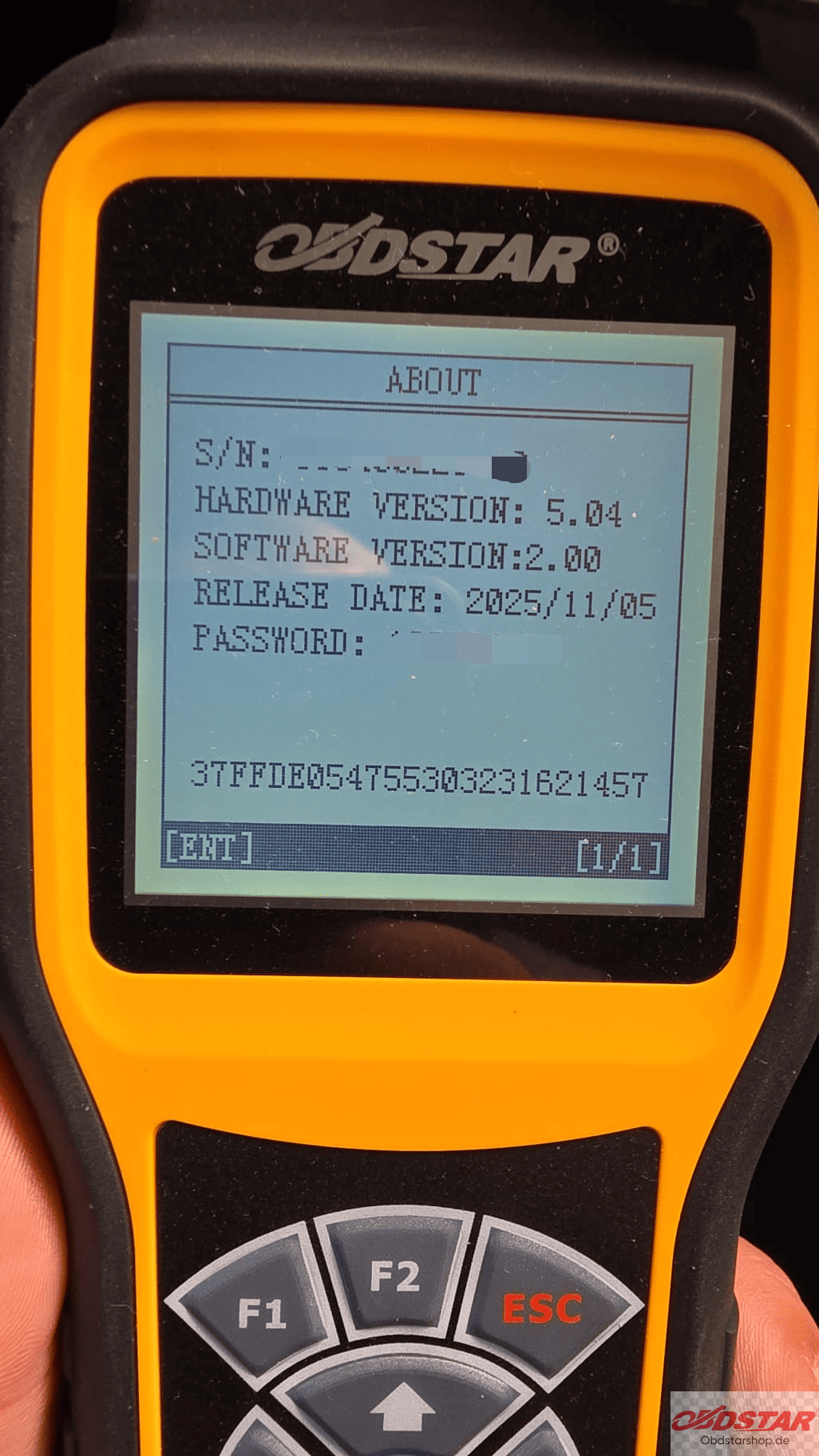
Does the OBDSTAR X300M Need to Connect to a Computer?
No. OBDSTAR X300M does not require a computer connection.
If you are trying to register or update an X300M through the PC upgrade tool, note that this is not the required procedure for this model.
For other OBDSTAR devices that use the Handheld Device One-Click Upgrade Tool, you can follow the registration and update steps below.
How to Register an OBDSTAR Account
1. Prepare a memory card with a capacity of at least 4GB and a compatible card reader. Insert the card into your computer.
2. Turn on your OBDSTAR device and open System Information to check its serial number and registration password.
3. Visit the official OBDSTAR website and download the Handheld Device One-Click Upgrade Tool. Install it on your computer.
4. Open the upgrade tool and click Member Registration to enter the registration page. Fill in the required information.
Enter the following dealer code: 0086A002
After completing the required fields, click Register Now to finish registration.
How to Update an OBDSTAR Device
5. Use your newly registered account and password to log in.
6. In the upgrade tool, select Format External Memory Card Before Upgrade and Select All
Click Upgrade and wait for the process to finish.
7. Remove the memory card from the card reader and insert it into the OBDSTAR device. Restart the device to complete the procedure.
Feel free to contact us
E-Mail: sales@OBDSTARshop.de
WhatsApp: +86 15223201143
Tel: 0086-15223201143
Leave a Reply