

In this guide, we’ll walk through a real workflow—How to Read Volkswagen CDC32 Cluster Data and Add a Key Using OBDSTAR G3-based on a hands-on demo.
Getting Connected the Right Way
In some cases, the usual connector simply won’t establish communication. That’s where GODIAG GT115 multi-function wiring harness comes in.
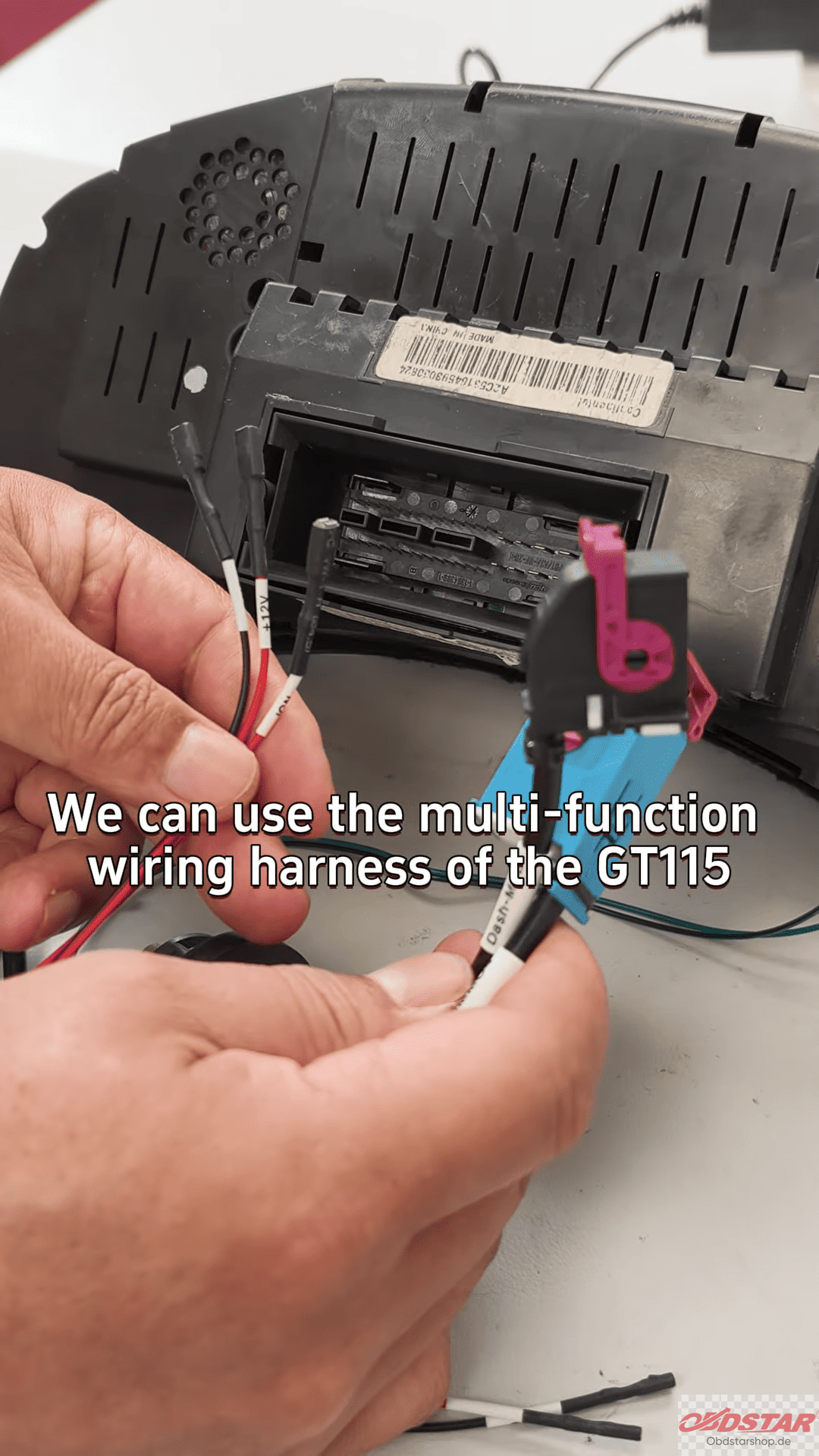
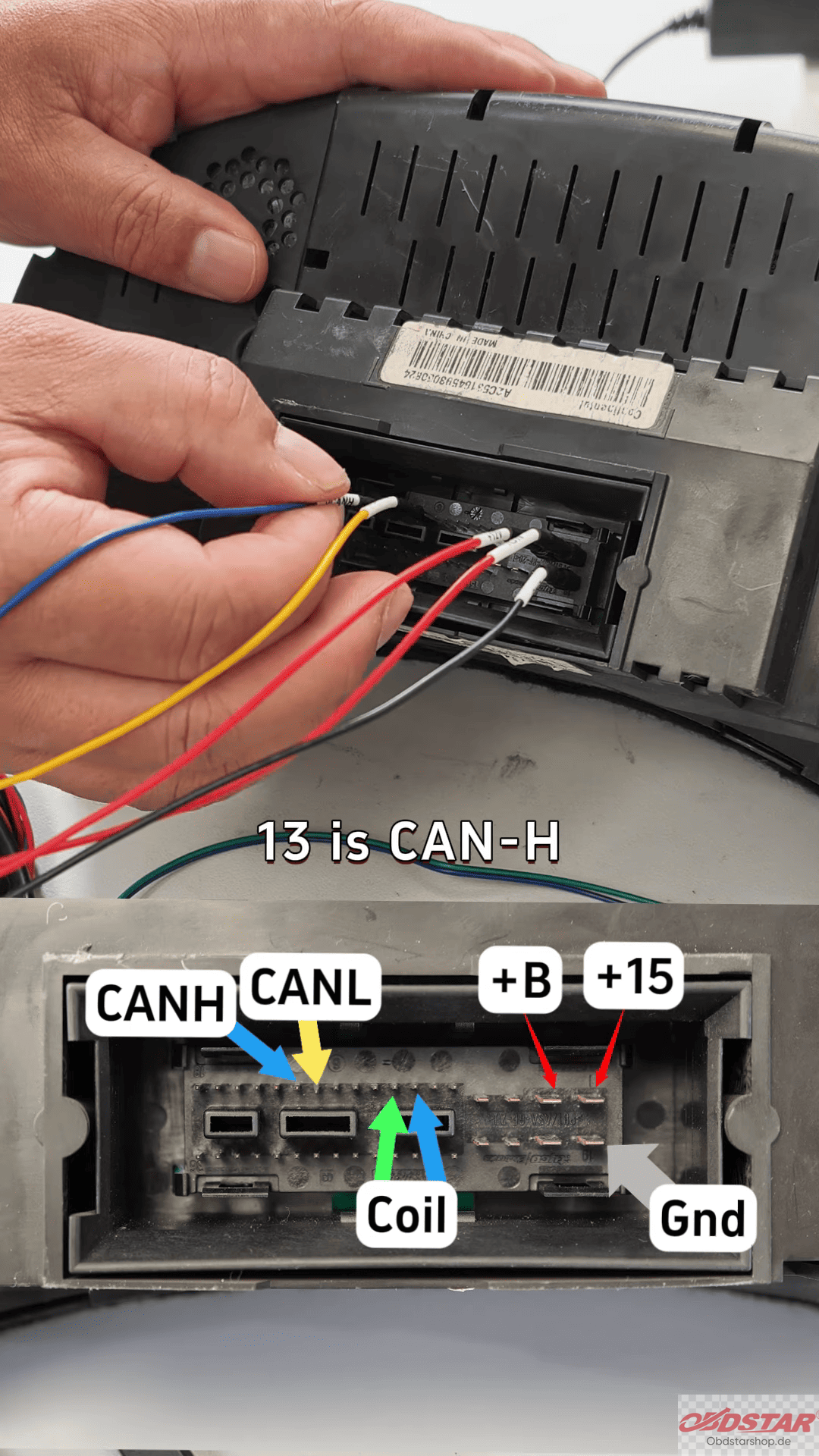
Following the wiring diagram is key:
Power supply goes to pins 1 and 2 (positive)
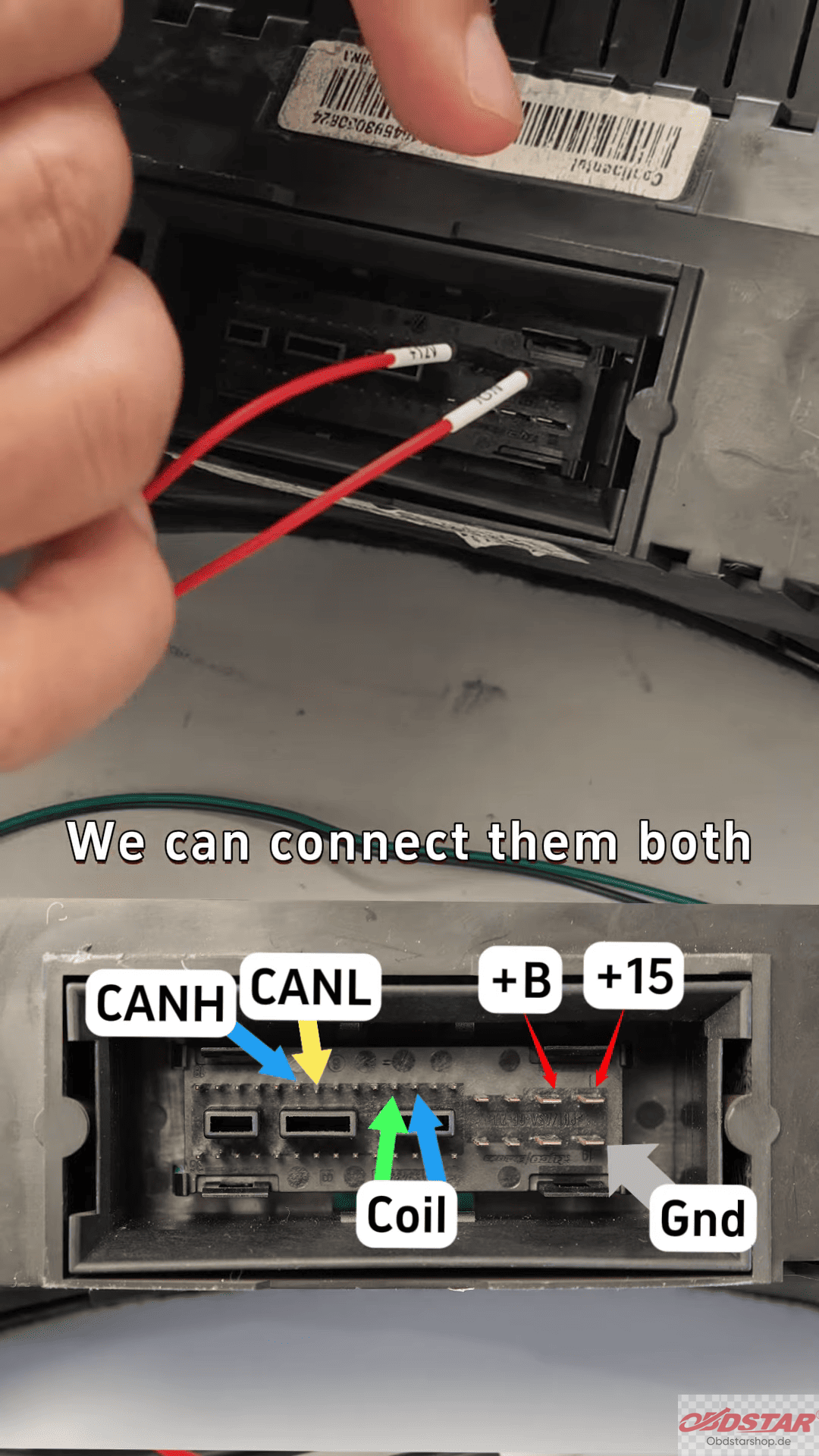
Pin 19 should be grounded
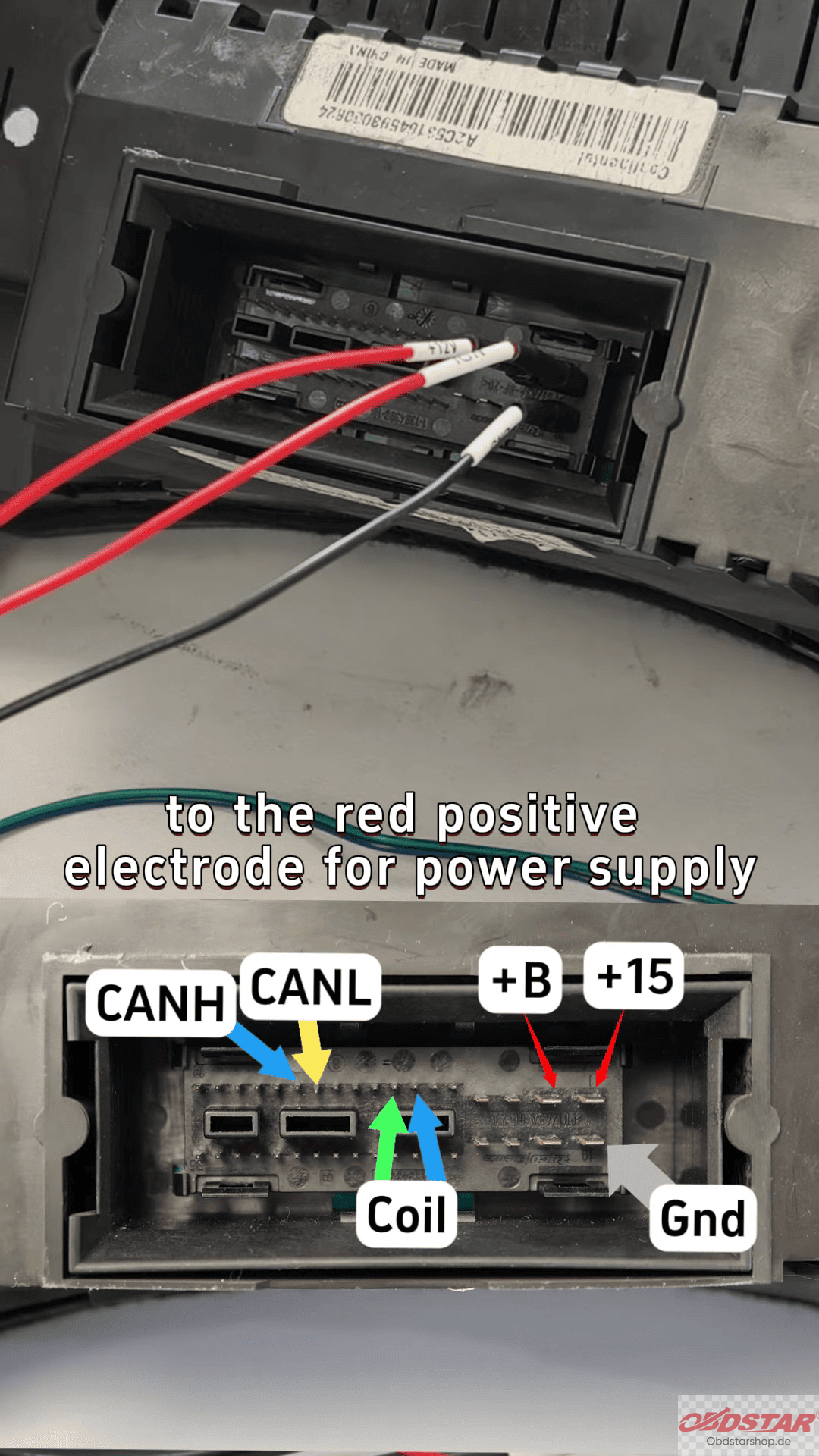
Pins 12 and 13 are CAN lines (CAN-L and CAN-H)
The sensing coil connects to pins 7 and 8
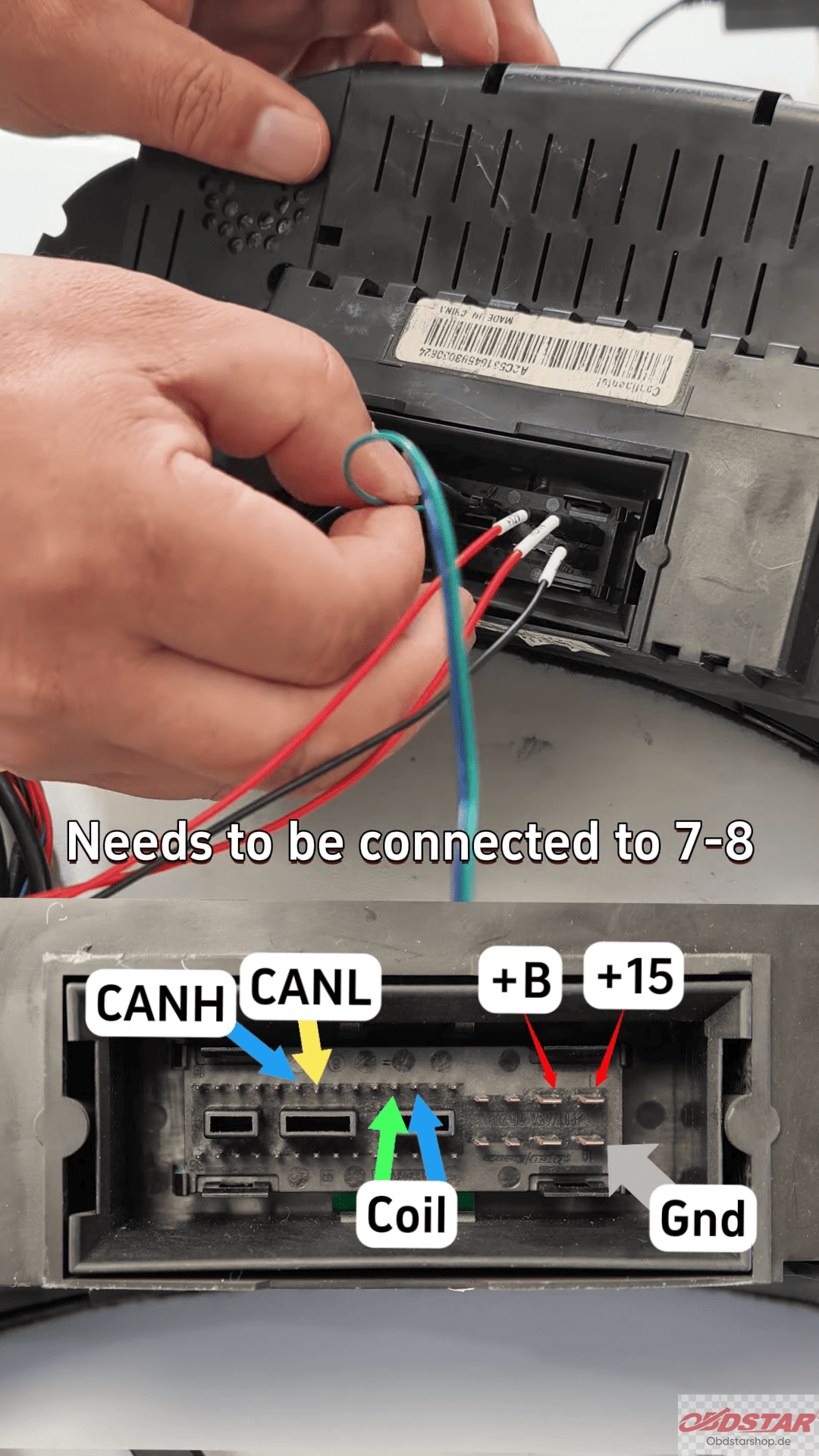
Once everything is wired correctly, you’re ready to move forward.
Reading CDC32 Cluster Data
After powering up the dashboard (a mechanical key is needed to light it up), enter the IMMO function on KeyMaster G3.
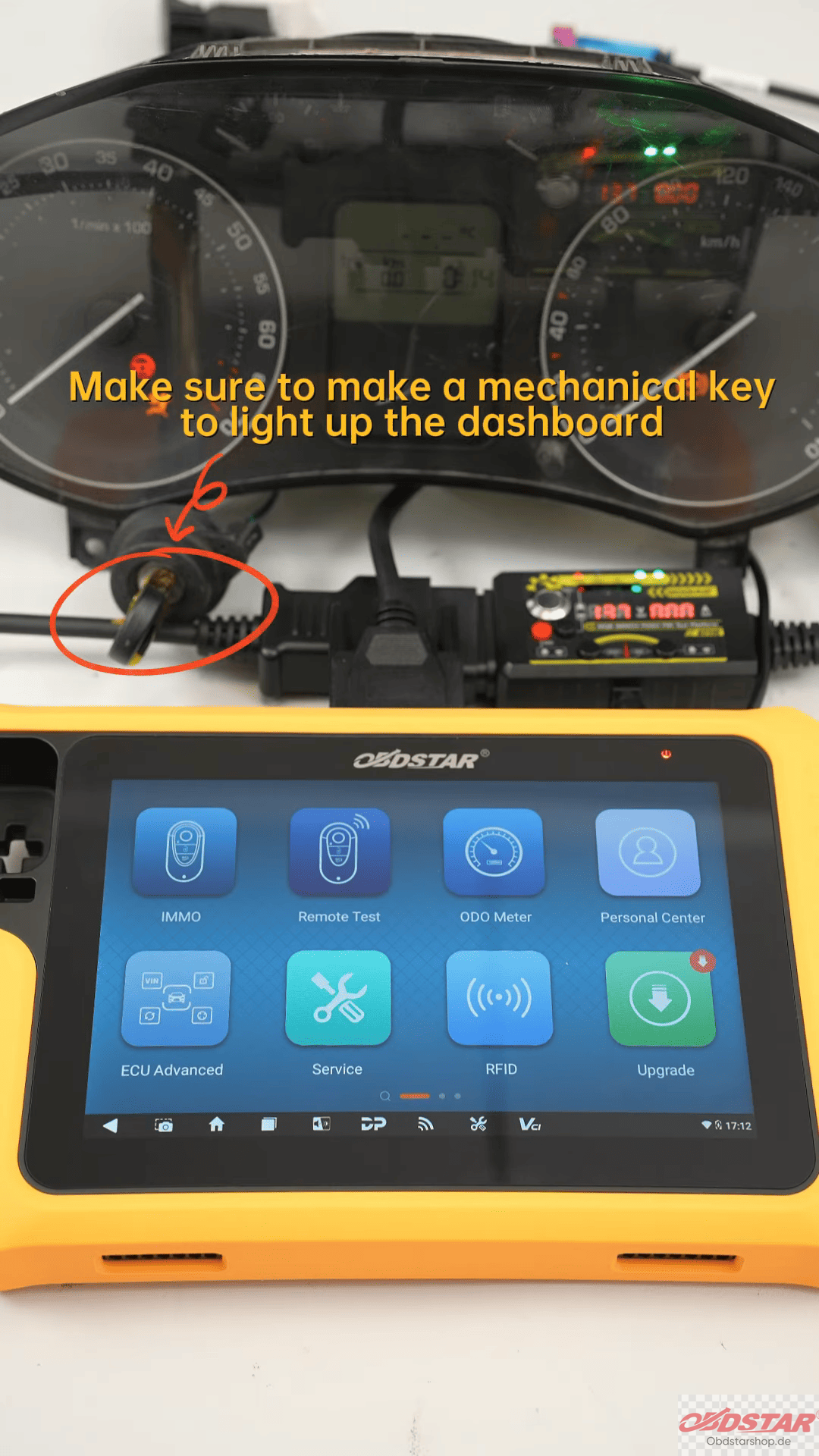
Navigate through:
Volkswagen
Manual selection
Fourth-generation CAN dashboard
CDC32
From there, you can read the EEPROM and immobilizer data. This step is essential before moving on to key programming.
Generating and Adding a New Key
With the data successfully read, the next step is key generation.
The system will guide you:
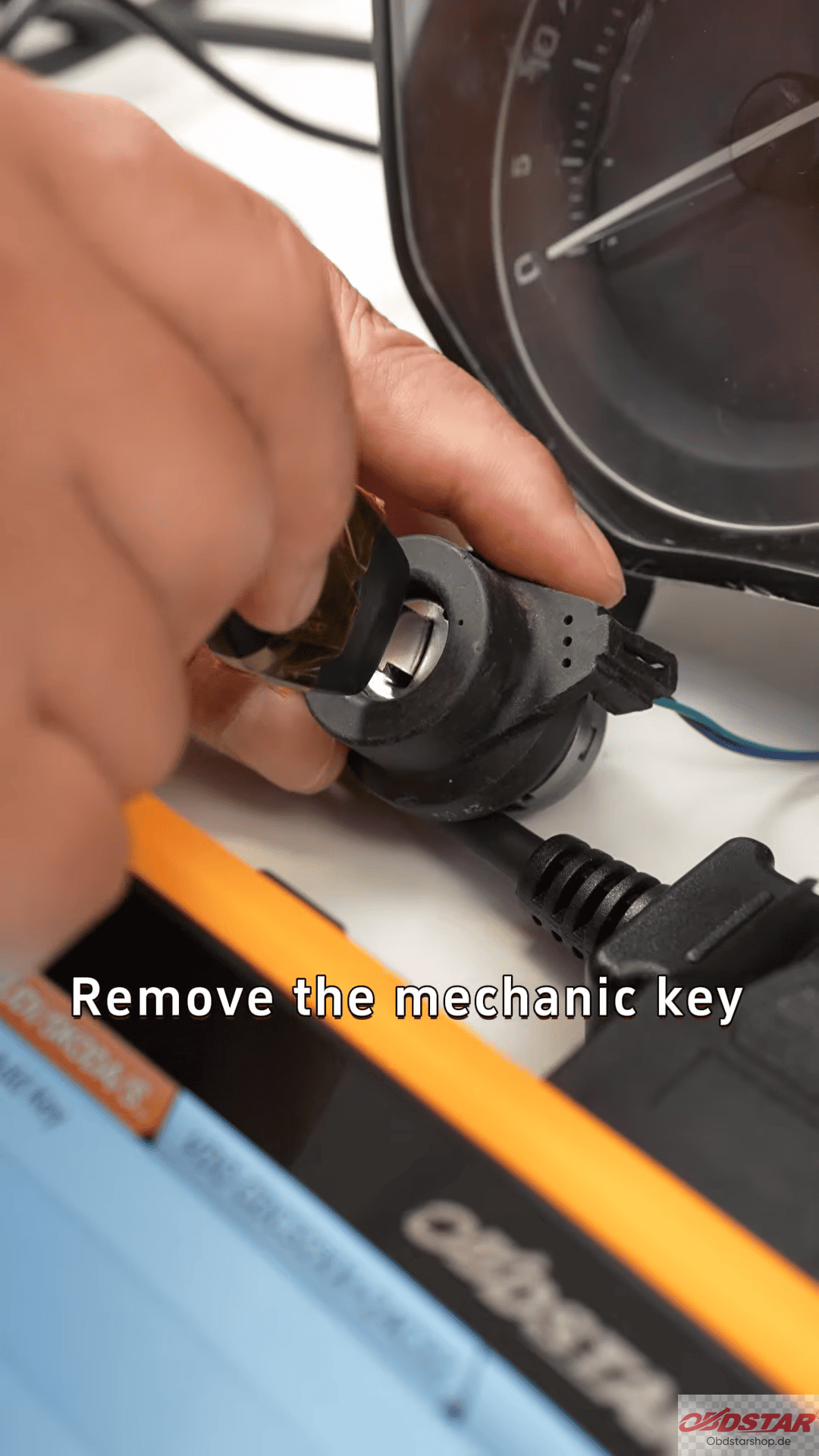
Remove the mechanical key
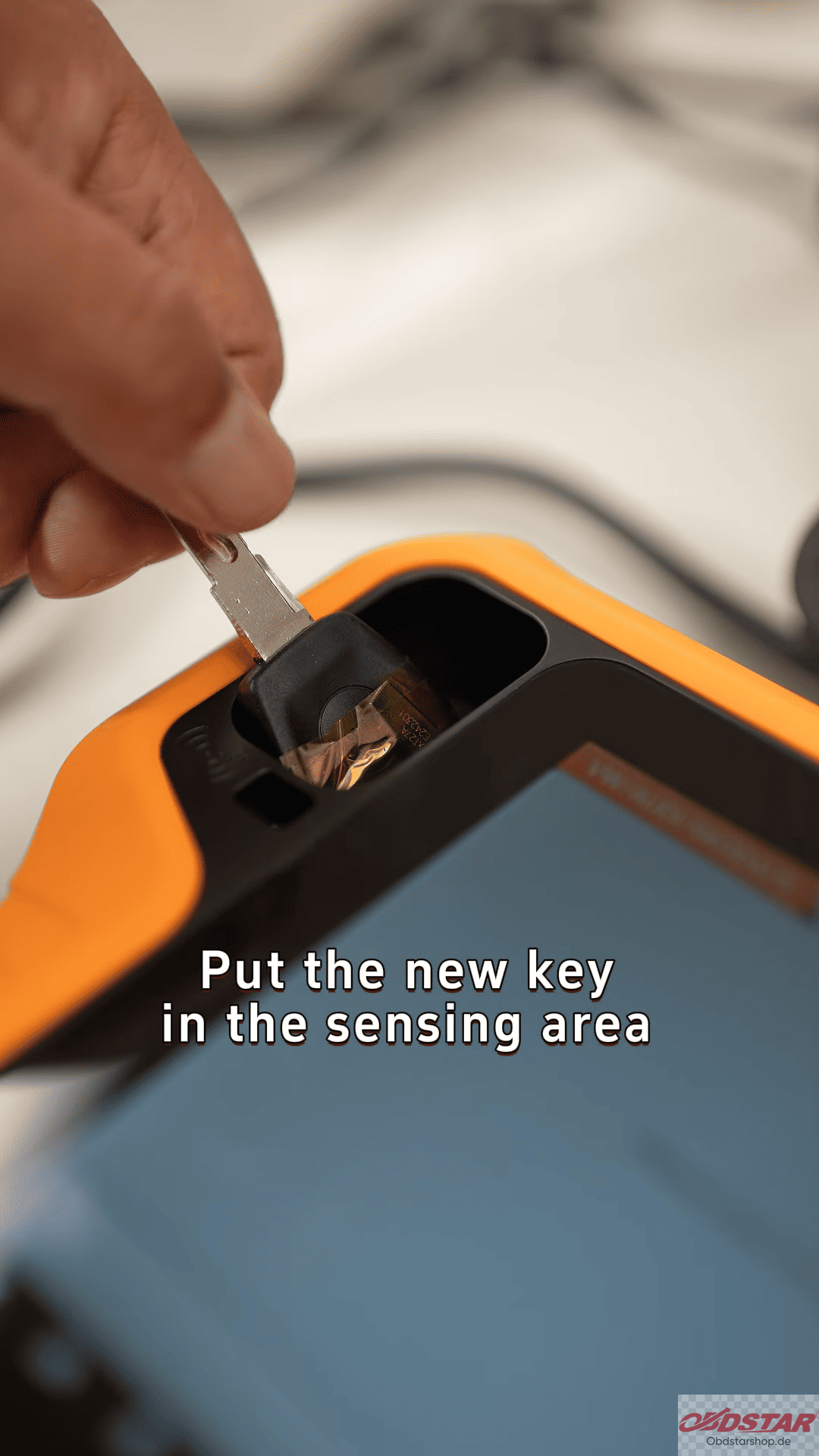
Place the new key in the sensing area
Follow on-screen prompts
Once the dealer key is generated, you can proceed with direct key addition.
Final Testing
After programming, insert the newly generated key into the ignition and test it. If everything was done correctly, the vehicle should recognize the key without issues.
Even though CDC32 clusters can seem difficult at first, the process becomes straightforward with proper wiring and the right tool. OBDSTAR X300 Classic G3 provides a clear workflow, making both data reading and key addition efficient and reliable.
Read also:
How to Recover VW Fourth Generation All Key Lost with OBDSTAR G3
Leave a Reply