



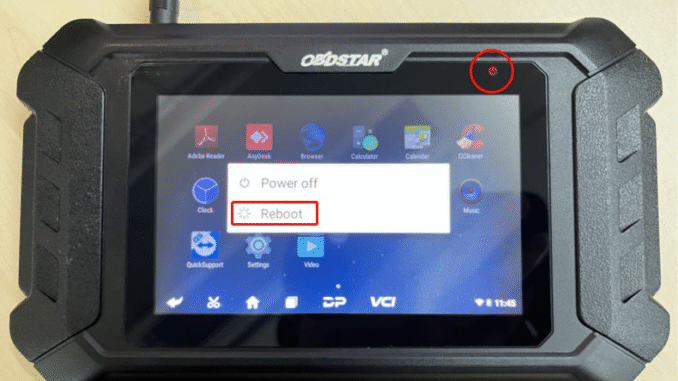
This guide explains how to perform the DP5x firmware update, DP7x firmware update, and MD7x firmware update, along with visual references from the original documentation.
Here we take iScan Ducati motorcycle tool as an example.
Step 1: Back Up DP Software
Warning: The firmware upgrade will erase all settings and DP software from the device. Expired users cannot re-download software via one-click upgrade, so you must back up the software first.
Insert a TF card (≥16 GB) into the device for backup.
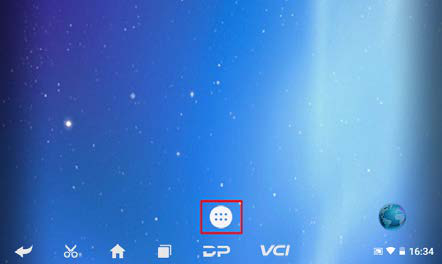
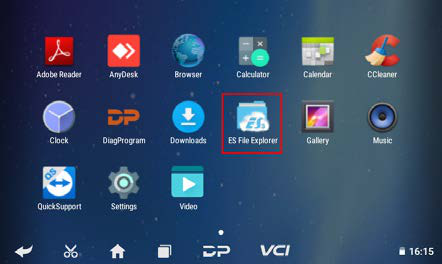
On the home screen, tap the menu button and open ES File Explorer.
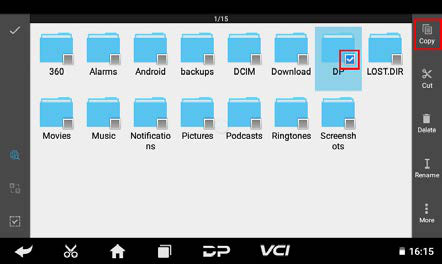
In ES File Explorer, long-press the DP folder, then tap Copy.
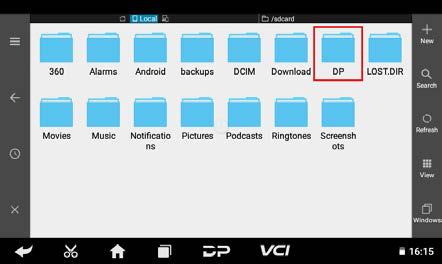
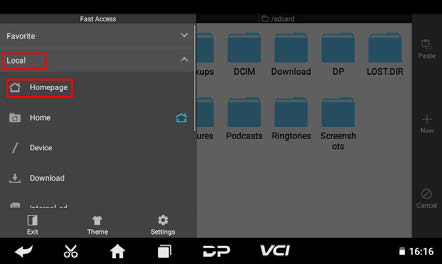
Tap the menu button, expand Local, and select Home.
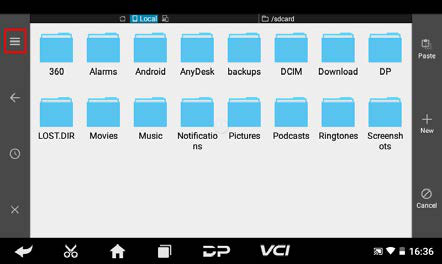
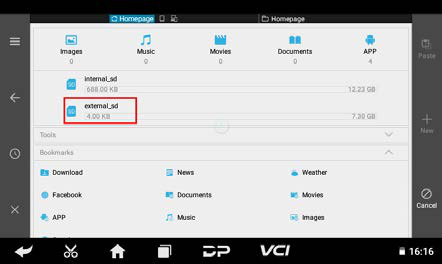
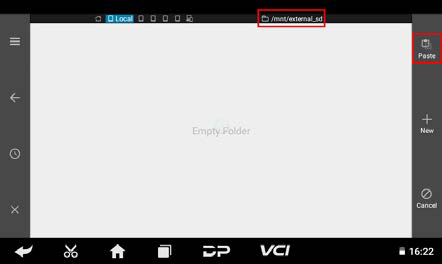
Select the external TF card and tap Paste. Wait for the copy to complete. After upgrading, simply overwrite the DP folder back to the device from the TF card.
Step 2: Preparations
Firmware file – Format: update_dp(xx)_(yyyymmdd).img (e.g., update_dp50_20211221.img).
A TF card (≥1 GB) and card reader – All data on the card will be erased during the process. Back up important files first.
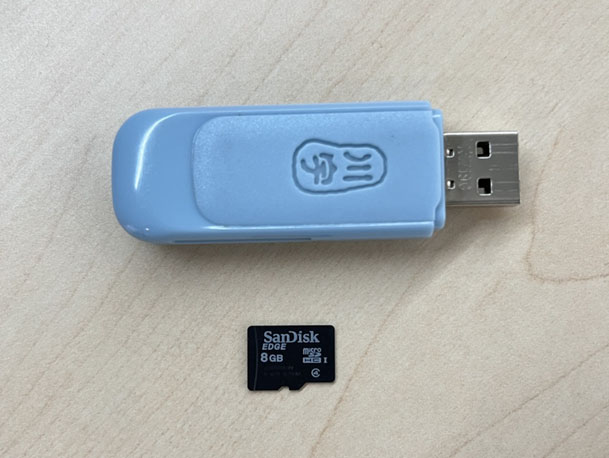
Step 3: Create the Upgrade TF Card
Warning: All files on the TF card will be deleted. Back up important data beforehand.
Ensure your computer recognizes the TF card and displays its capacity.
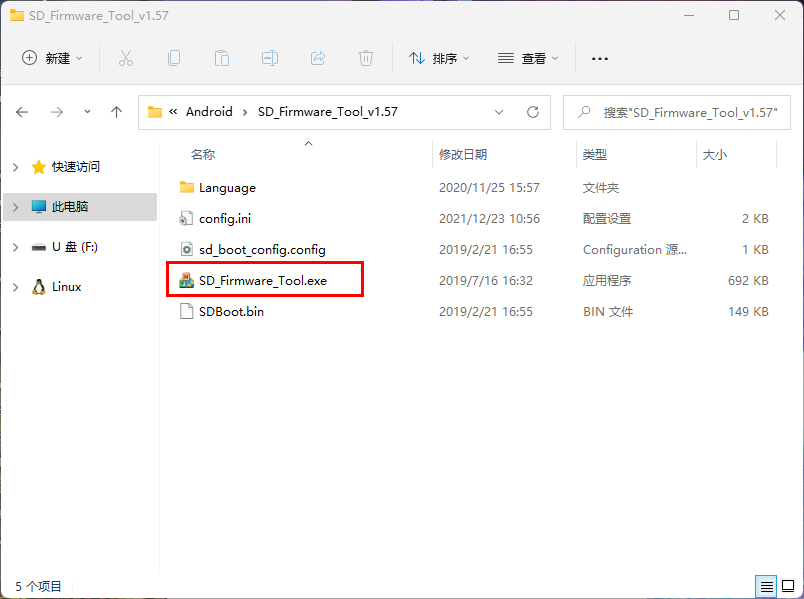
Click Firmware to select the firmware file.
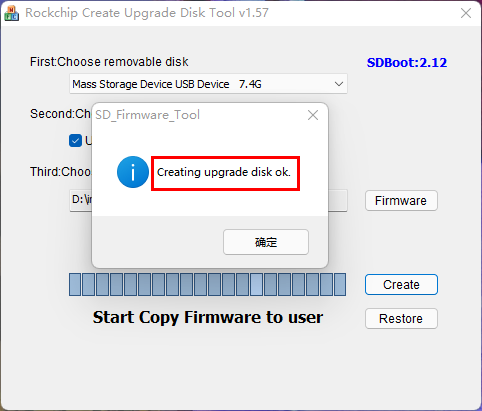
Click Create to write the firmware to the TF card.
Wait for the “Creating upgrade disk ok” message, indicating the bootable TF card is ready.

Step 4: Perform the Firmware Update
Warning: Connect the device to a power adapter and ensure the power LED is on. Do not power off during the upgrade.
Insert the prepared TF card into the device.
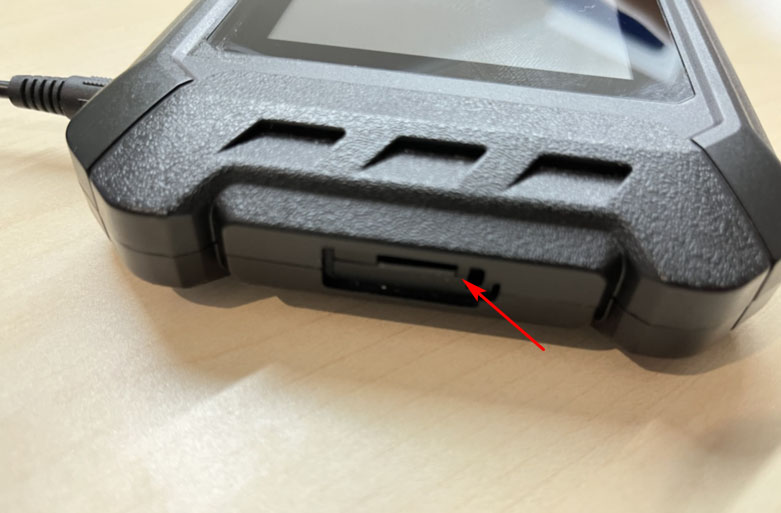
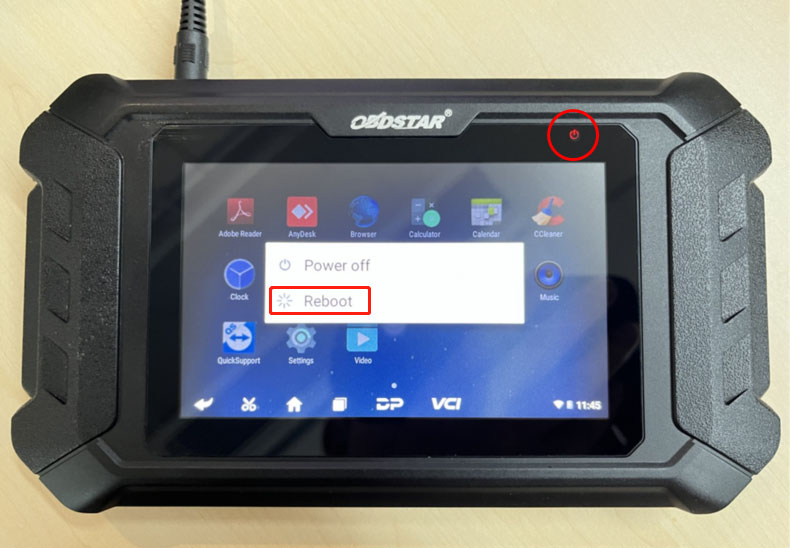
Confirm the power adapter is connected and the LED is on. Long-press the power button and select Restart.
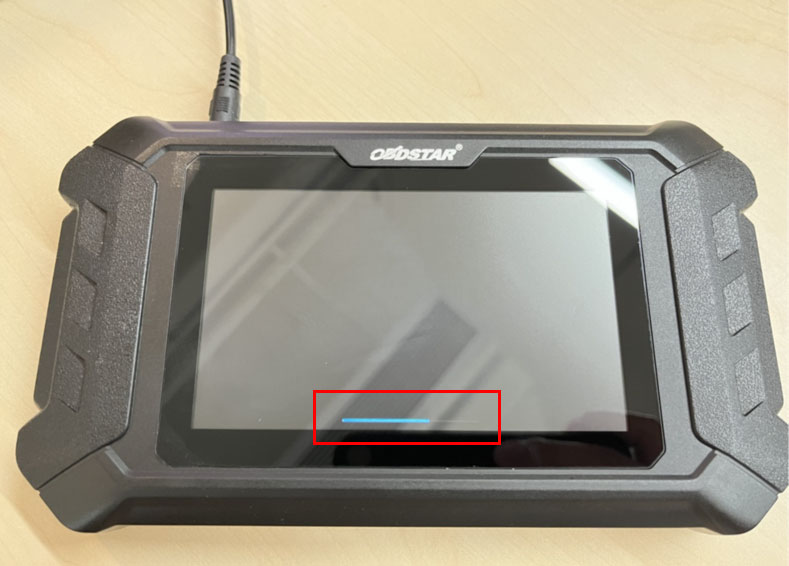
The device will automatically start the firmware upgrade. A progress bar will appear—wait patiently.
When the screen shows “Doing Actions successful. Please remove the sdcard,” remove the TF card. The device will reboot automatically.

The firmware upgrade is now complete.
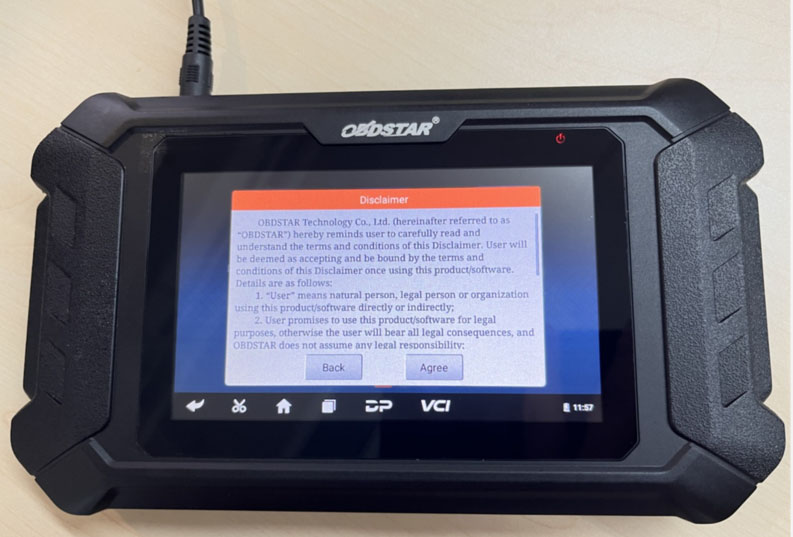
Step 5: Verify the Firmware Version
Open Settings → About Device → Build Number to confirm the current firmware version.
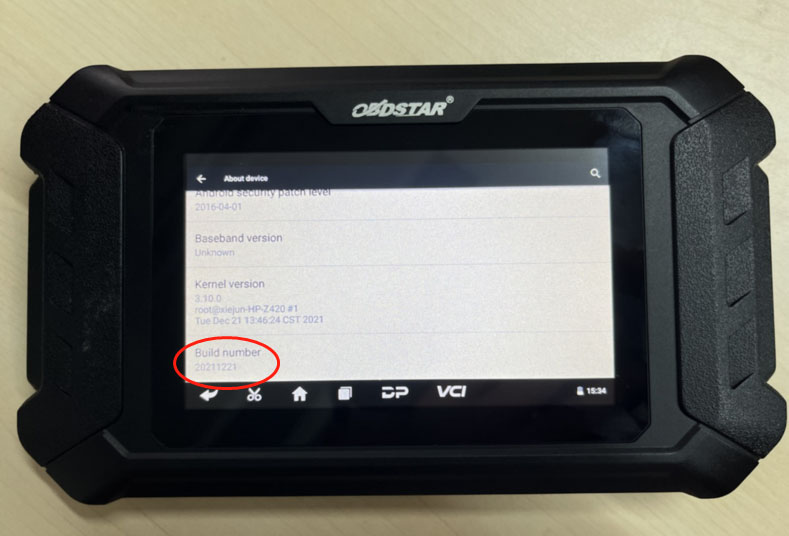
This guide covers the complete process for safely upgrading the firmware on DP5x, DP7x, and MD7x series devices. Always back up your data and maintain power during the update to avoid device failure.
Leave a Reply