




In this situation, the recommended solution is to reflash the firmware of X300 Classic G3 to restore access. Please note that the firmware files for G3 are different from other OBDSTAR devices such as X300 DP Plus.
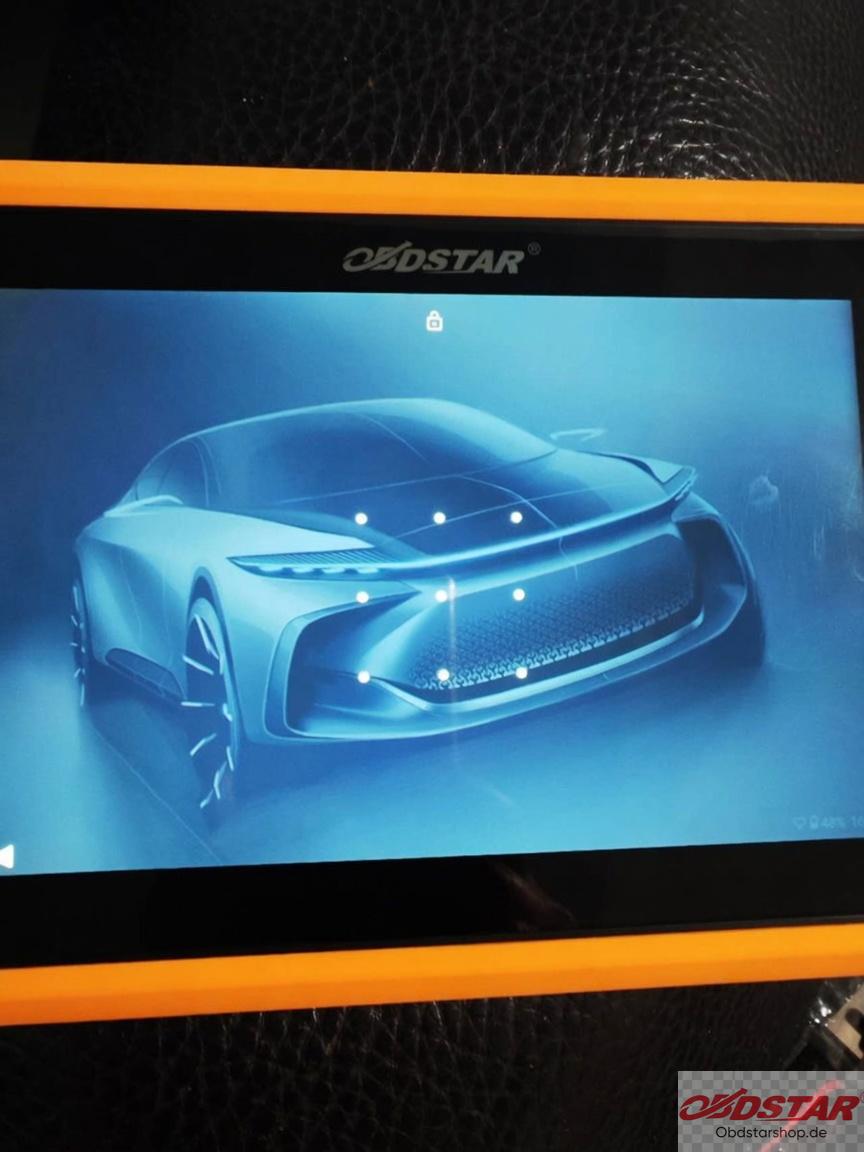
Firmware reflash will erase the device settings.
Installed software and user data may be removed.
If your subscription has expired, previously downloaded software may not be available through one-click update.
Therefore, it is recommended to back up important software and data before proceeding.
Required Files and Tools
A TF/SD card
SD firmware tool
OBDSTAR G3 firmware file (DP800.img)
The firmware package is different from other OBDSTAR tablet models, so make sure to use the correct G3 firmware file.
Step 1 Prepare the TF Card
Insert a suitable TF card into your computer.
Use the SD firmware tool to restore and prepare the TF card for firmware installation.
Step 2 Load the Firmware File
Open the SD firmware tool and select X300 Classic G3 firmware image file: DP800.img
Then create a bootable upgrade TF card.
Wait until the firmware card creation process is completed.
Step 3 Install Firmware on X300 Classic G3
Remove the TF card from the computer and insert it into the OBDSTAR X300 Classic G3.
Restart the device. The system will automatically detect the firmware file and begin the reflash process.
Wait patiently until the firmware update is completed.
Step 4 Restart and Check the Device
Remove the TF card.
Restart OBDSTAR X300 Classic G3.
Complete the initial setup.
Check whether the screen unlock password has been removed.
The device should now be accessible again.
Related post
Leave a Reply