




In this guide, I will show you how to upgrade OBDSTAR G3 firmware and solve problems such as some X300 Classic G3 users forgetting their device password.
Warning:
Upgrading the firmware will clean up all the settings in the device and all the software
in KeyMaster G3. Users who have expired cannot download the software again through the
one-click upgrade, so the software in the device needs to be backed up.
Steps 1: Backup DP Software
1. Insert a TF card with a capacity greater than 16G into the device to back up the DP software.
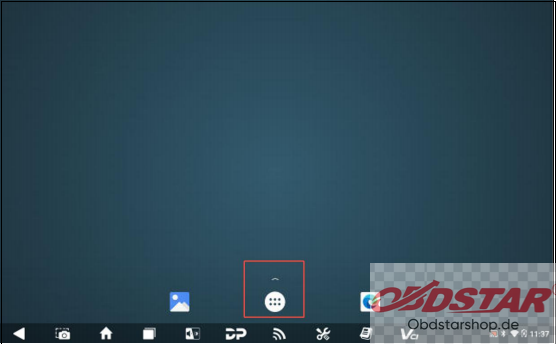
2. Click the main menu button on the main screen, select and enter the ES file manager.
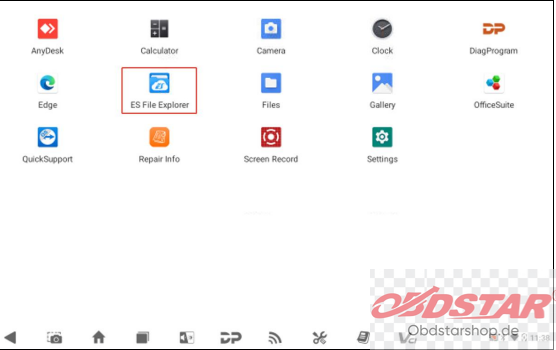
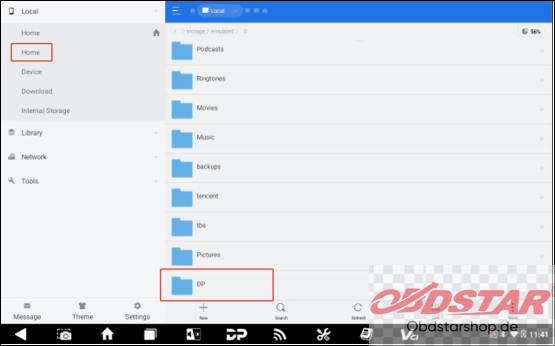
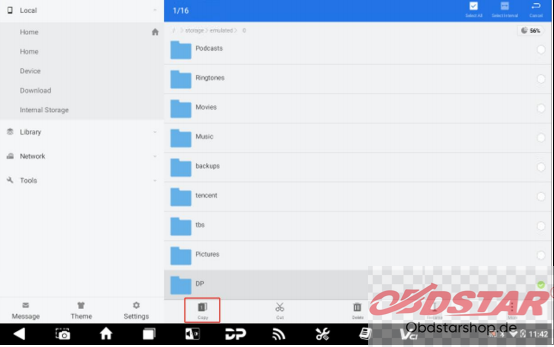
3. Locate and long press the DP folder in the main interface of the ES file manager that opens, and then click the copy button.
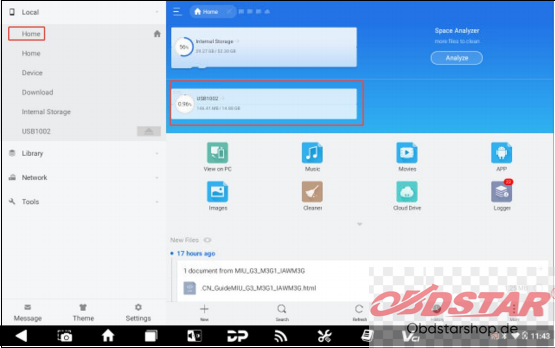
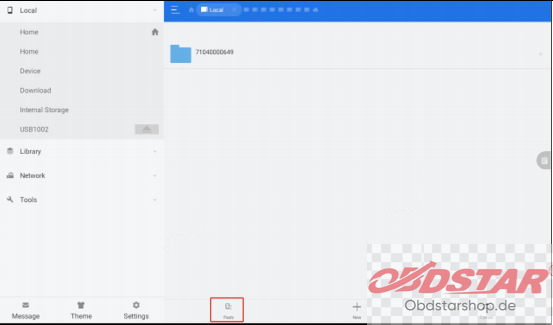
4. Click the Home button, select and click the external TF card, then click the Paste button. Waitfor the copy to complete. After the firmware upgrade is completed, just overwrite the DP directory from the TF card to the device.
Step 2: Preparations
1. The firmware file to be upgraded.The firmware file name format is: XXX.img.
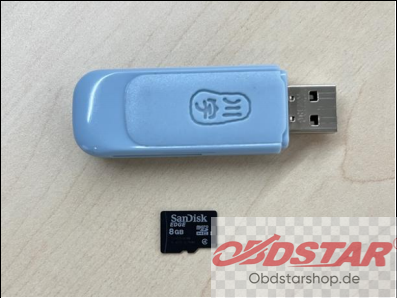
2. A TF card with a capacity greater than 4GB and a TF card reader. All files inside the card will be cleared during the operation, please backup first.
3. Software (75.zip)
Step 3: Making upgradable TF card
1. After inserting the TF card into the card reader, insert the card reader into the USB port of thecomputer
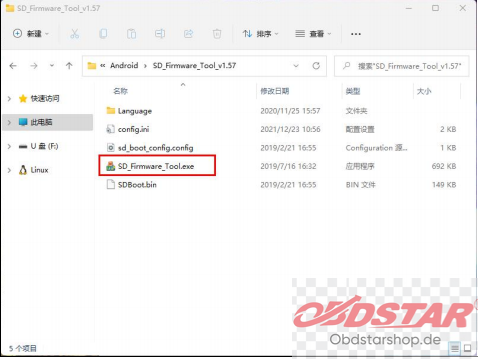
2. Unzip the “SD_Firmware_Tool_v1.75.zip” and run the extracted “SD_Firmware_Tool.exe”
3. Follow the steps below.
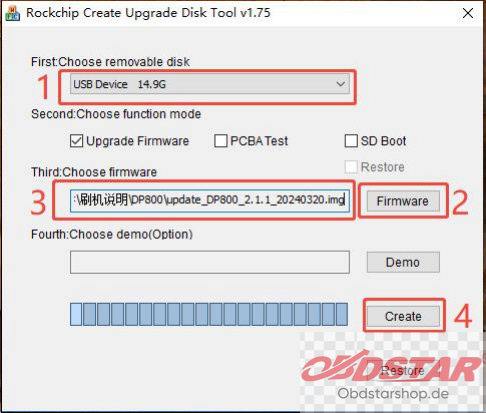
Warning: All files in the TF card will be erased, if there are important files
in the TF card, please back them up before operating.
Operating instructions
1) Make sure that your TF card information and capacity size can be seen, if not, please check that the TF card reader is properly inserted into the USB port of the computer.
2) Click the Firmware button to select the firmware file.
3) Click the Create button to start writing the firmware file to the TF card.
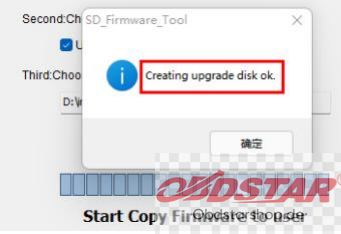
4. Wait for the prompt Creating upgrade disk ok. The upgradable TF card is made successfully
Step 4: Updating the firmware
1. Insert the TF card into the device.
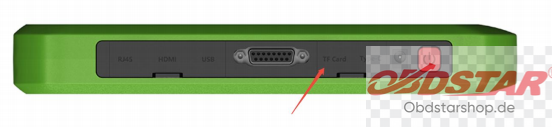
2. Make sure the device is plugged in and the power light is on. Long press the device powerbutton and select Restart.
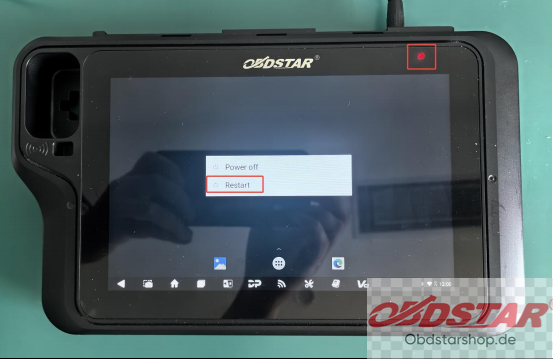
3. The device will automatically perform a firmware upgrade, and a progress bar will appear. Please wait.
4. When the screen displays “Doing Actions succeed. please remove the sdcard”, remove the TFcard from the device. The device will automatically reboot and enter the system.
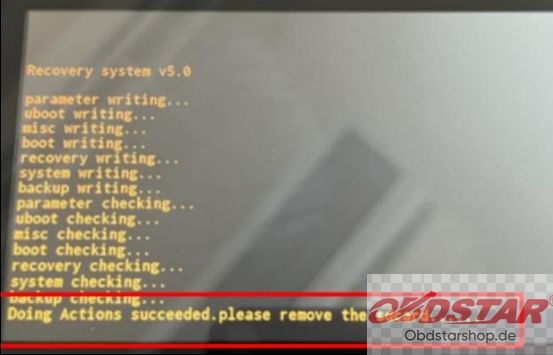
The firmware upgrade is complete.
Leave a Reply